


How to free up PS5 storage for GTA 6
Sony’s Australian Grand Theft Auto VI support page says to leave 212 GB free. This guide follows Sony’s official Australian storage and M.2 SSD pages: how to check space, what can live on USB or an M.2 drive, and which drives the console supports.
The short version
Sony’s official Australian Grand Theft Auto VI support page says: “Ensure you have 212 GB of storage space available.” To see how much space you have, the official storage page says to go to the home screen and select Settings > Storage. You can then delete games and applications, or move games to USB extended storage or to a compatible M.2 SSD.
PS5 games can sit on a USB extended storage drive, but Sony’s official table says you must move that data back to the console storage or to M.2 SSD storage before you can play them. An M.2 SSD can hold and launch PS5 games, if it meets Sony’s official requirements (PCI-Express Gen4x4 NVMe, Key M, 250 GB to 8 TB, and the size and heatsink limits on that page). SATA drives are not supported. Formatting an M.2 SSD for the first time erases everything on it.
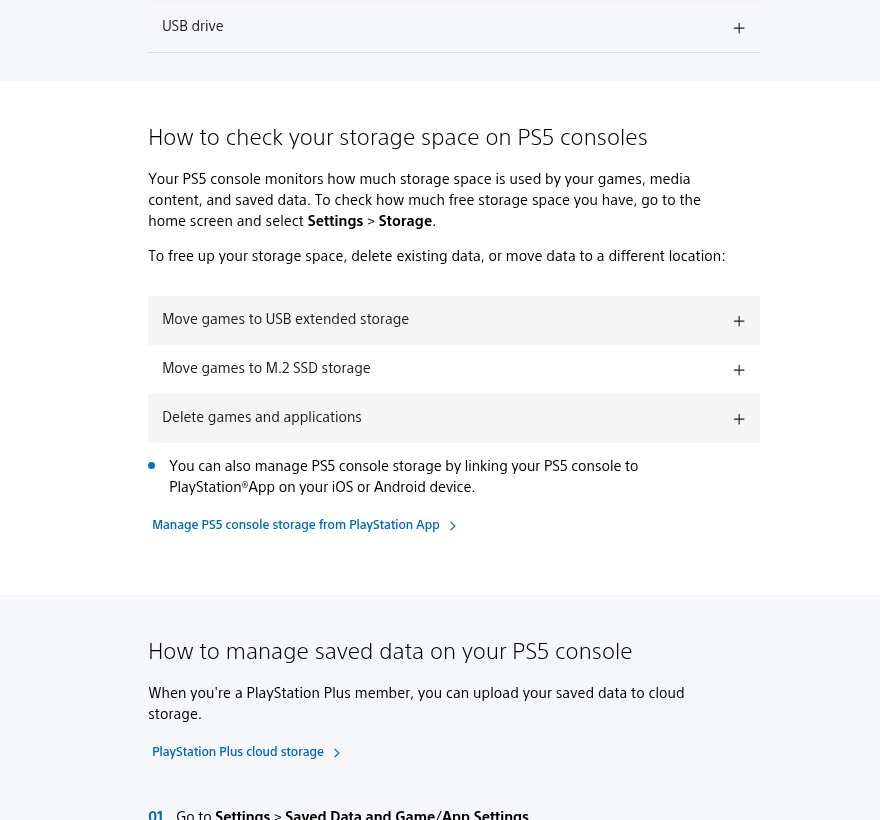
Sony’s official Australian Grand Theft Auto VI support page says: “Ensure you have 212 GB of storage space available.”
- To see how much space you have, go to the home screen and select Settings > Storage.
- You can then delete games and applications, or move games to USB extended storage or to a compatible M.2 SSD.
How to check, move or delete games
Sony’s official Australian storage page, re-read 13 November 2026, AEST, says your PS5 “monitors how much storage space is used by your games, media content, and saved data.” To check free space:
- Go to the home screen and select Settings > Storage.
To free up space, that same official page lists three actions:
- Move games to USB extended storage
- Move games to M.2 SSD storage
- Delete games and applications
It also says you can manage PS5 console storage by linking the console to the PlayStation App on an iOS or Android device. We are not inventing extra button names beyond what that official page shows. Follow the expanded steps on Sony’s page for each of those actions.
If you are a PlayStation Plus member, the same official page says you can upload saved data to cloud storage via Settings > Saved Data and Game/App Settings, then Saved Data (PS5) or Saved Data (PS4), then Upload or Delete from Console Storage. Cloud storage itself needs a PlayStation Plus subscription, as the official footnotes say.
What can live where
Sony’s official storage-locations table is the source for this. In short:
- PS5 game data can go on USB extended storage or M.2 SSD storage, not on cloud storage or a USB drive used for media. To play a PS5 game that is on USB extended storage, you need to move it back to the console storage or to M.2 SSD storage.
- PS4 game data can go on USB extended storage or M.2 SSD storage.
- Saved data for PS5 games can go to cloud storage (with PlayStation Plus), not to USB extended storage, M.2 SSD storage, or a USB drive.
- Saved data for PS4 games can go to cloud storage or a USB drive.
- Screenshots and video clips can be copied to a USB drive. The official footnote says media can’t be copied from the USB drive back to console storage, and that you can share captures through the PlayStation App.
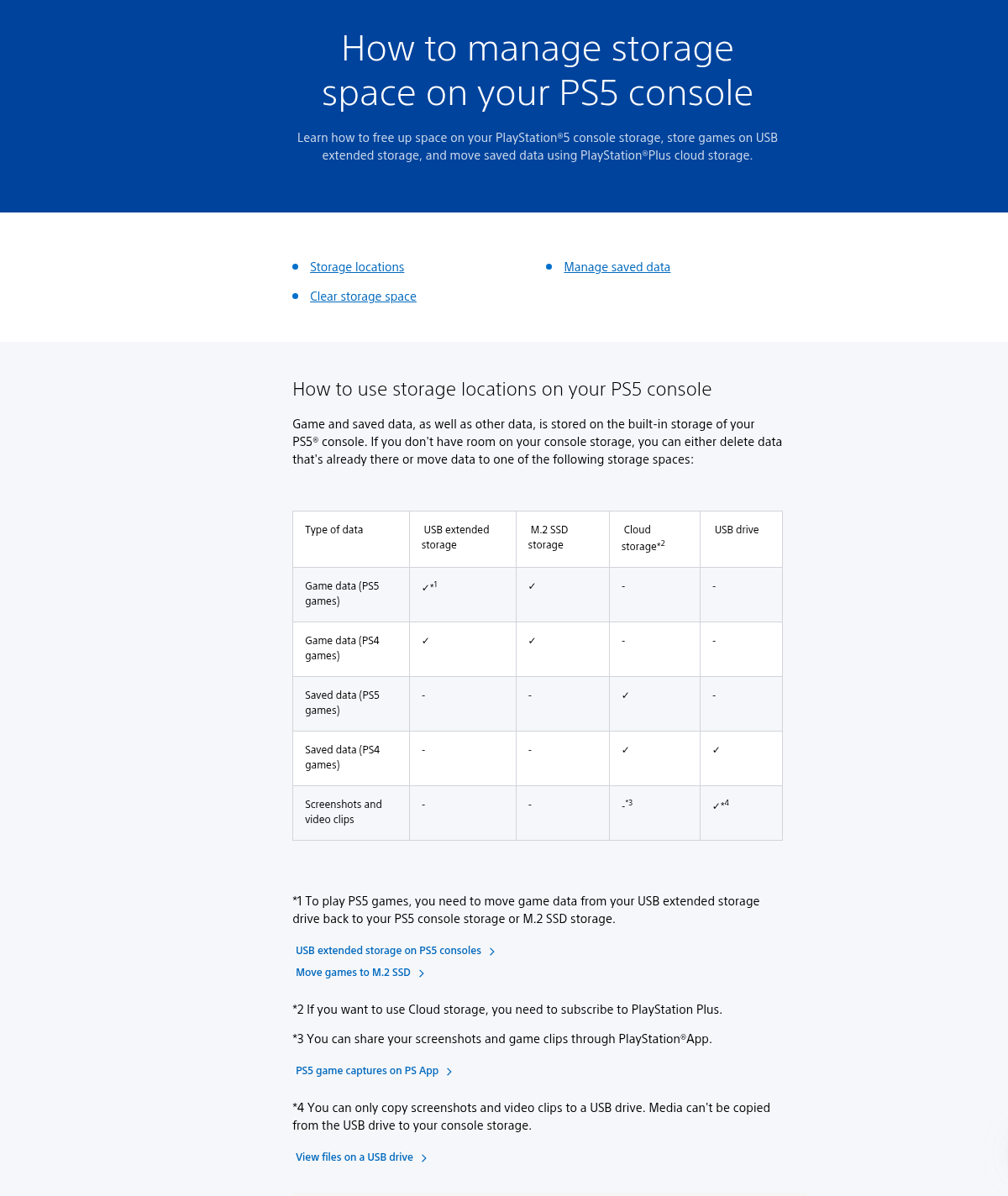
- PS5 game data can go on USB extended storage or M.2 SSD storage, not on cloud storage or a USB drive used for media. To play a PS5 game that is on USB extended storage, you need to move it back to the console storage or to M.2 SSD storage.
- PS4 game data can go on USB extended storage or M.2 SSD storage.
- Saved data for PS5 games can go to cloud storage (with PlayStation Plus), not to USB extended storage, M.2 SSD storage, or a USB drive.
- Saved data for PS4 games can go to cloud storage or a USB drive. Screenshots and video clips can be copied to a USB drive.
Adding a compatible M.2 SSD
Sony’s official Australian M.2 page says an M.2 SSD (sold separately) can increase storage on a PS5 or PS5 Digital Edition console, and can be used to download, copy and launch PS5 and PS4 games, as well as media apps. You can move games freely between console storage, USB extended storage and the M.2 drive — remembering that PS5 games on USB still have to come back to the console or the M.2 drive to be played.
The official requirements table, re-read 13 November 2026, AEST, is in the figure below.
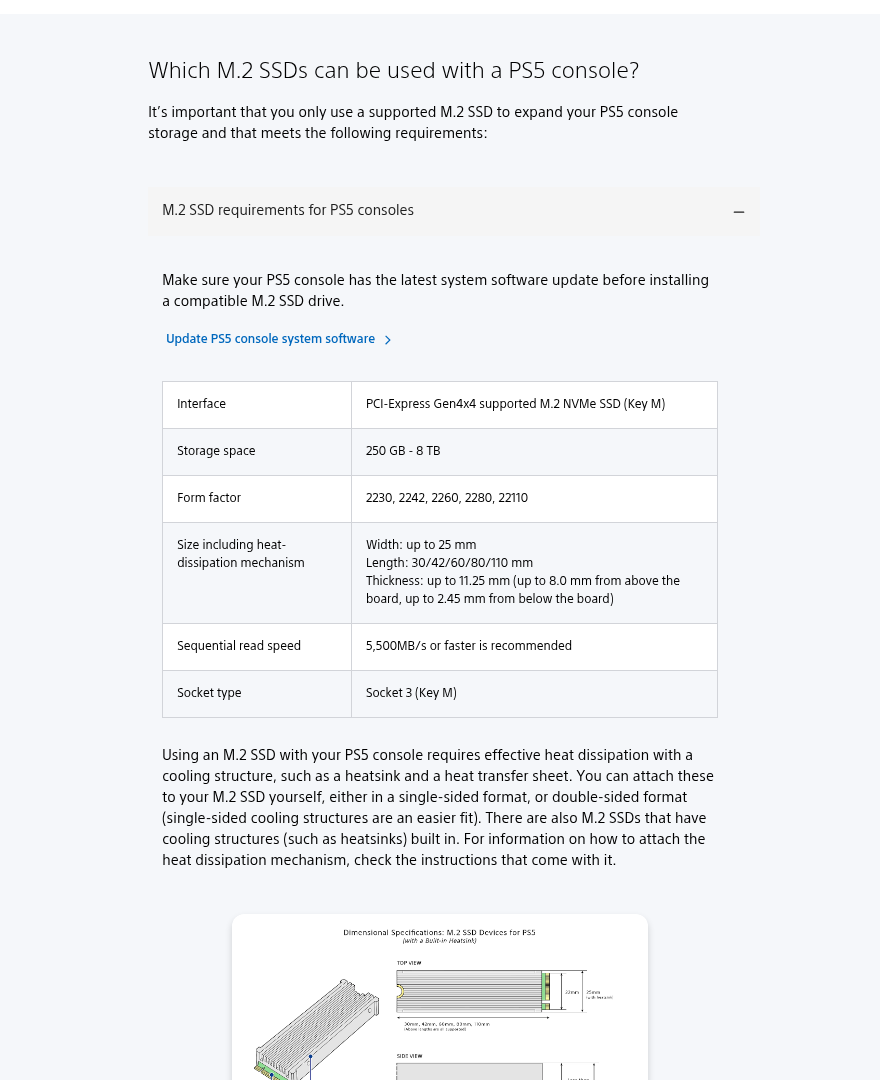
| Requirement | Official wording |
|---|---|
| Interface | PCI-Express Gen4x4 supported M.2 NVMe SSD (Key M) |
| Storage space | 250 GB – 8 TB |
| Form factor | 2230, 2242, 2260, 2280, 22110 |
| Size including heat-dissipation mechanism | Width: up to 25 mm. Length: 30/42/60/80/110 mm. Thickness: up to 11.25 mm (up to 8.0 mm from above the board, up to 2.45 mm from below the board) |
| Sequential read speed | 5,500MB/s or faster is recommended |
| Socket type | Socket 3 (Key M) |
SATA drives are not supported. Formatting an M.2 SSD for the first time erases everything on it.
Sony also says to update PS5 system software before installing a compatible drive, and that using an M.2 SSD “requires effective heat dissipation with a cooling structure, such as a heatsink and a heat transfer sheet.” Some drives have this built in. The official FAQ says M.2 SATA SSDs are not supported, that you must format the entire drive (which erases any data already on it, and that erased data can’t be recovered), and that you should not add a second heatsink to a drive that already has one built in. Touch a metal-grounded object first to discharge static, and do not power on or play with the cover off. Installation steps differ by console model group (CFI-1000 and CFI-2000/7000); follow the official page for your model rather than a third-party walkthrough.
To set the M.2 drive as a download destination, the official page says: home screen, then Settings > Storage > Installation Location. To move games already on the console: Game Library, highlight the data, press the Options button, then Move Games and Apps. To check space on the M.2 drive: Settings > Storage > M.2 SSD Storage.
If a game installed on the M.2 drive has problems, Sony says to move it to the internal Ultra-High Speed console storage. The official FAQ also says all of a game’s data must be stored in the same place, and that Host Memory Buffer is not supported.
Common questions
How much space does GTA 6 need on PS5? Sony’s official Australian support page for the game says 212 GB. Re-check that page if Sony updates the figure.
Can I play a PS5 game from a USB drive? You can store PS5 game data on USB extended storage, but Sony’s official footnote says you need to move it back to the console storage or to M.2 SSD storage to play it.
Will any NVMe drive work? No. Sony publishes a requirements table. SATA is not supported, a heatsink or other heat-dissipation mechanism is required, and the drive must fit the official size limits.
Does installing an M.2 SSD void the warranty? Sony’s official FAQ says that, in general, manufacturer warranty coverage should not be affected if you install a drive that meets the required specifications and you follow the official installation instructions, and that damage from failing to do so may not be covered. Read Sony’s complete warranty terms on that official page. This is not legal advice.
What this guide is not
It is not a shopping list of recommended SSD brands, and it is not a substitute for Sony’s model-specific installation steps or warranty terms. If Sony’s official pages and this guide ever disagree, believe Sony’s pages and tell us via Corrections.
Related: How to pre-load GTA 6 in Australia and New Zealand · How to request a PlayStation Store refund in Australia
Sources
- Grand Theft Auto VI support (PlayStation, Australia, re-read 13 November 2026, AEST)
- How to manage storage space on your PS5 console (Australia, re-read 13 November 2026, AEST)
- How to add an M.2 SSD to a PS5 console (Australia, re-read 13 November 2026, AEST)
Spotted a mistake? Corrections.